Google Calendar can help you keep birthdays in one place so you do not miss important dates. Depending on how you want to manage them, you can either show birthdays from Google Contacts or create birthday events manually in the calendar.
Method 1: Show Birthdays from Google Contacts
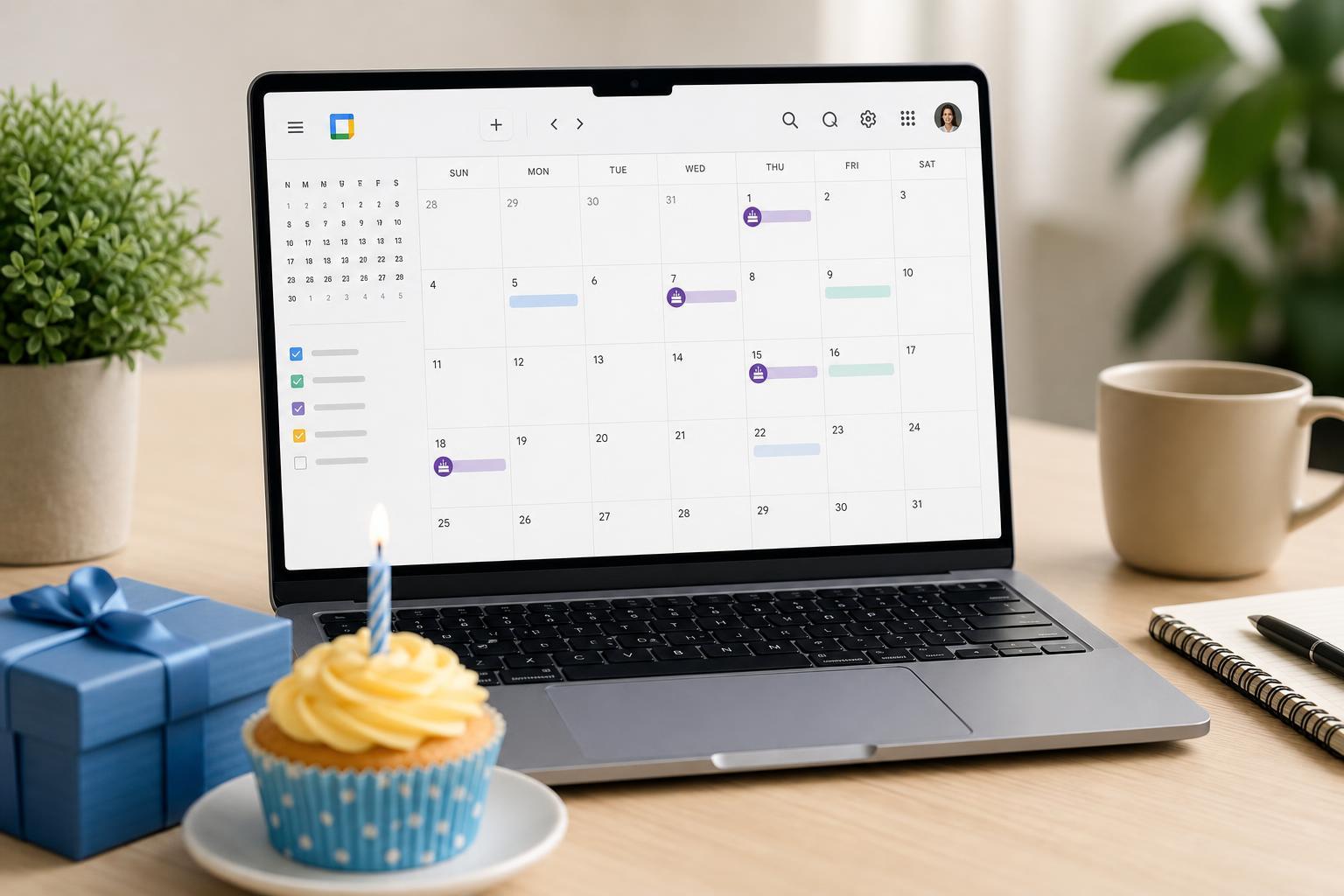
This is the easiest option if you already store birthdays in Google Contacts. When birthdays are saved there, Google Calendar can display them automatically as a birthday calendar.
- Open Google Contacts in a browser and sign in to the same Google account you use for Calendar.
- Select a contact you want to add a birthday for, or create a new contact.
- Click Edit contact and find the Birthday field.
- Enter the birth date and save the contact.
- Open Google Calendar.
- In the left panel, look for Other calendars and make sure the Birthdays calendar is enabled. If you do not see it right away, expand the list or look for calendar visibility options.
Method 2: Add a Birthday as a Manual Calendar Event
If you do not want to use Google Contacts, you can create a normal calendar event for the birthday instead. This gives you more control over reminders, labels, and how the event appears.
- Open Google Calendar.
- Click Create or tap the plus button on mobile.
- Enter the person’s name in the event title, such as "Maya’s Birthday".
- Choose the correct date.
- Set it as an all-day event if you want it to appear like a birthday reminder rather than a timed appointment.
- Add a notification or reminder if you want an alert in advance.
- Save the event.
Which Option Should You Use?
- Use Google Contacts if you want birthdays to appear automatically in a dedicated birthday calendar.
- Use a manual event if you want custom reminders, notes, or a birthday that does not need to sync from Contacts.
- Use both if you want the contact stored properly and also want a separate reminder with your own notification timing.
If the Birthday Calendar Does Not Show Up
If birthdays are missing after you add them, the issue is usually with calendar visibility or contact sync rather than the birthday itself.
- Make sure the Birthdays calendar is turned on in Google Calendar.
- Confirm the birthday was saved in Google Contacts under the same account.
- Check that contact sync is enabled on your phone if you added the birthday from mobile.
- Refresh the calendar or reopen the app after making changes.
A Quick Way to Keep Birthday Dates Organized
For most people, the best approach is to save birthdays in Google Contacts and let Google Calendar display them automatically. If you need custom reminders or special formatting, add a separate calendar event as well.